5 Common Laptop problems and How to resolve Them


Laptop Problems, A huge chunk of the corporate world is mobile, and they need computing power that can accommodate that. Over the years laptops have gone from bulky and heavy to slim and lightweight. But, even with all the upgrades in power, size, capacity and memory, laptop problems still arise pretty regularly. Here is a quick list of five of the most common laptop problems we hear about and how you can address them on your own.

LOUD FAN OR HEATING UP

Leads to shut down. Laptops get moved around a lot. This can lead to low air intake to the fan. It also gives them plenty of opportunities to drag dust and small particles into their cooling system via their fan portal.
Solution: Use your laptop on hard, flat surfaces; Avoid putting it on soft surfaces that may hinder air flow. Clean out your fan with compressed air. Reduce how many programs you run at once as well because the more you have running, the harder it has to work.

LAPTOP RUNNING SLOWLY
This happens quite often and could be related to hard drive space, malware or the first signs of equipment failure.
Solution: There are lots of ways to try to tackle speed issues, but check out our blog post dedicated to just How to fix slow laptop

BATTERY DOSENT LAST

One of the best features of a laptop is that it’s wireless. But, we live in constant fear of draining our battery and running out of juice, so we are constantly hard on our battery.
Solution: First, check all of your charger cable connections to be sure they are snug. Next, drain your battery completely and recharge it by leaving your laptop on until it dies. One of the greatest fixes of all technology is simply to fully drain the energy from it and try again, the computer equivalent of a good night’s sleep. If it still fails far sooner than it should, you may need to replace the battery itself.

NO INTERNET

Laptops are notorious for losing connection to the internet, which can be a major problem
Before assuming some sort of equipment failure, try some basic steps.
Solution: On most laptops, there is an actual wireless button or switch to activate the connection, find it and make sure it’s in the ON position. Then re-boot your router, again using the drain the power tactic; unplug your router, let all the juice drain out for 10-25 seconds, then plug it back in. If you’re still having trouble, troubleshoot your network connections in your control panel. Finally, re-build your network from the beginning to make sure all your connections are set up properly.

BLACK SCREEN

You open up your laptop, power it on, hear it running, but the screen is black.
Solution: Unplug the power, remove the battery and then hold the power button for 30 to 50 seconds. Reattach the power cord and re-boot. Then shut down again, put in the battery and re-boot.
If you try any of these do-it-yourself fixes and are still experiencing the same problem, it’s time to bring in a laptop repair professional.

How to fix a faulty laptop keyboard


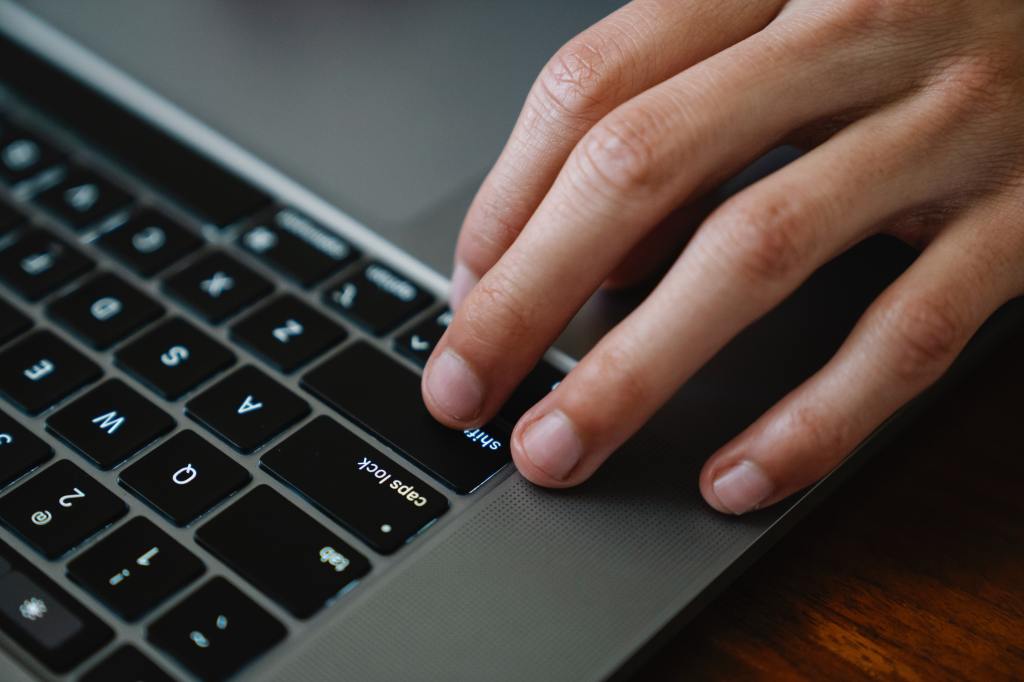
There are a some things you can do if your keyboard is not working some are easy, others are a bit complicated. In any case, your keyboard problems can be fixed, it’s just a matter of how fast, and whether or not you’ll have to pay to get the job done.

REBOOT YOUR COMPUTER


Whenever you’re having laptop problems, this is the first thing to try before proceeding any further. Restarting the computer is fast, easy, and just might solve the problems you’re experiencing with your laptop keyboard.

The good news is you don’t need a functioning keyboard to restart your laptop. All you have to do is open the Start menu on Windows 10, click Power, and then select the Restart option. In case you’re experiencing problems with your touchpad as well, press and hold the power button on your laptop for a few seconds, after which the device will shut down. Then just turn it back on with the press of a button and see if that solved the problem.

IS IT A HARDWARE OR SOFTWARE ISSUE?


This step is going to narrow down your laptop issues, revealing if your laptop keyboard is not working because of a hardware or a software problem.

This is how you do it: Restart your computer and enter the BIOS. You can do that by pressing a particular key repeatedly while the computer is booting up. Which key to press depends on the laptop you own it’s usually F2 or Delete. The exact key to use will be displayed at the bottom of the screen while your PC is booting up.

If you can enter the BIOS, software is to blame for your keyboard problem. But if you can’t enter BIOS, you’re most likely dealing with a hardware issue.
HARDWARE PROBLEM


What to do if it’s a hardware problem
In case of a hardware problem, the first thing to do is to try and clean the keyboard. Before you get started, make sure to turn off the laptop and unplug it for safety reasons. Once that’s done, turn the laptop upside down and then gently shake it and tap it on the bottom. Hopefully, you’ll be able to get rid of some dust and other dirt that found its way under the keyboard. You can also blow into the keyboard, or better yet use a can of compressed air.
If that doesn’t work, you can also remove the battery from your Pc and then plug in the device to power it on. Sometimes the battery can cause keyboard-related problems, especially if it overheats.
DAMAGED KEYBOARD


There’s also a chance that the keyboard has been damaged or disconnected from the motherboard. In these two cases, you’ll have to open up the laptop and connect the keyboard or replace it if it’s faulty. If the laptop is still under warranty, just send it in to get it repaired. If it isn’t, we strongly advise you to pay a professional to fix the problem instead of doing it yourself, unless you really know what you’re doing.

What to do if it’s a software problem
If your laptop keyboard is not working due to a software issue, you’ll likely be able to get it back up and running in no time at all. There are a few things you should try out.

The first one is to update your keyboard driver. Open Device manager on your Windows laptop, find the Keyboards option, expand the list, and right-click Standard PS/2 Keyboard, followed by Update driver. After the update is finished, test to see if your keyboard works. If it’s not, the next step is to delete and reinstall the driver.

Right-click on the Standard PS/2 Keyboard again and then select the Uninstall device option. Once the driver is deleted, reboot your device, and the driver should reinstall automatically. Test out the keyboard again to see if the problem is solved.

If all that didn’t work, the last option is to run a malware scan with a tool like Malwarebytes. It’s possible that your laptop keyboard is not working because of some sort of a virus, which a malware scan should hopefully get rid off.

8 Reasons Your Laptop Is Running Slow, and How to Fix It


HOW TO FIX A SLOW LAPTOP?


You Have to Quit Programs Running in the Background
If your laptop is slow, one of the easiest things you can do is close as many programs as possible. However, there are some programs that continue to run in the background even after you close them. These programs can eat up your processing power, which can slow your laptop down.

The fix: You can use Windows Task Manager to close programs running in the background. To do this, hit Ctrl + Alt + Delete on your keyboard and select Task Manager. Then make sure to click More details in the bottom-left corner. This lets you see which programs are using up your computer’s CPU, memory, and more.

You can sort all the programs running on your laptops from the most to least resource-intensive by clicking the header of any column. Then you can select a program and click End Task in the bottom-right corner of the window to force quit the program.


However, there might be certain programs running in the background that are necessary for your laptop to work properly. So, make sure you know what a program is before choosing to force quit it.


You Have Too Many Startup Programs
You might also have too many programs opening when you start your computer. Some of these programs will request permission to run when you boot your computer so that you will use them more often. However, there are some programs that will automatically run every time you turn on your computer without ever requesting permission.

The fix: To find out which programs are set to run when you boot your laptop, go to the Startup tab at the top of the Task Manager window. Here, you will see the application name, status, and its startup impact.

Click the header of the Startup Impact column to see which applications are slowing down your laptop the most. Then select a program and click Disable in the bottom-right corner of the window.


You can also speed up your boot process by closing all your programs before you turn your computer off. This way, you won’t have applications trying to start every time you boot your laptop.

You Need to Update Your Operating System
If you haven’t updated your OS (operating system) in a while, you might be missing out on new driver updates and software patches. This can slow your laptop down and leave you unprotected from security vulnerabilities that hackers use to infect your computer.

Typically, Windows rolls out major feature updates twice a year. On the other hand, patches for improving security and fixing bugs are released monthly. If your laptop seems to be running slower than usual, make sure that your system is up to date.

The fix: To find out if you need to update your OS, click the magnifying glass icon in the bottom-left corner of your screen and type update into the search bar. Then click Open and select Download if there are any available updates for your system.


You will then be required to restart your laptop for the changes to go into effect. You can do this by clicking Restart Now when the update files are finished downloading.

Your Laptop is Infected with Malware
If you are seeing pop-up ads on your laptop or programs are randomly crashing, your computer might be infected with malware (malicious software). Your computer can get infected when you open emails from unknown senders or download files from suspicious websites.

There are different kinds of malware that can cause your laptop to slow down for various reasons. Some malware can infect your laptop’s memory and spread to other programs and files on your computer. Hackers also use malware to steal your personal information, such as your bank details or home address.

The fix: To remove malware from your computer, click the magnifying glass icon in the bottom-left corner of your screen. Then type Security into the search box and click Open. Next, select Virus & threat protection and then click Quick scan.


You can also use third-party apps, such as the free version of MalwareBytes to scan your laptop for malware. Or, if you’re looking for even more protection, you can also install an antivirus program.


You Have Too Many Temporary Files
Temporary files are stored on your laptop whenever you create or modify a file. Usually, these files have names that end with “.tmp” or start with a tilde or dollar sign. Temporary files are usually deleted after you close a program or an application.

However, there are times that your laptop does not automatically delete these files. As a result, they can take up space on your hard drive and cause your laptop to slow down. To prevent this, you can delete temporary files manually.

The fix: To delete temporary files on your laptop, click the magnifying glass icon in the bottom-left corner of your screen. Then type Disk cleanup into the search bar and click Open. In the pop-up window that appears, select the drive that you want to clean and click OK. Finally, check the box next to Temporary files and click OK.


From here, you can also delete temporary internet files, downloads, and more. You can also click Clean up system files to remove even more temporary files. Then, you can also select the More Options tab to remove programs you do not use often and old system restore points.

Fragmented Files are Slowing Down Your Laptop
Whenever you create, delete, or edit a file on your computer, some of that data becomes fragmented. That means pieces of files are stored in various parts of your hard drive. Over time, this can cause your laptop to slow down because your drive has to jump around to find each piece of data.

In order to consolidate and organize the data on your drives, you can defragment your computer. And, while Windows 10 automatically defragments files once a week, you can also do this manually any time you want to.

The fix: To defrag a drive, click the magnifying glass icon in the bottom-left corner of your screen. Then type Defrag in the search bar and click Open. In the pop-up window, click Analyze to check how much space is taken up by fragmented files on your hard drive.

If there are lots of fragmented files, click Optimize. Finally, wait for the drive to reach 0% fragmented before you start using programs or opening files again.


However, you should only defrag your drive if it is labeled as a hard disk drive under Media type. If you see that your drive is labeled as a solid-state drive, defragging it can actually wear down your drive more.


You Need to Update Your Hard Drive
If you’re still using a traditional hard disk drive (HDD), you might want to think about upgrading to a new solid-state drive (SSD). An HDD typically lasts for three to five years because it uses magnetic disks (or platters) to store data. An arm sits on top of these platters and reads and writes data as the disks spin at speeds of thousands of RPM (revolutions per minute).

On the other hand, an SSD is made up of flash memory chips, so it does not have any moving parts. Because of this, it can read and write data several times faster than an HDD. In addition, SSDs are less noisy and consume less power than an HDD.

If you want to know more about the difference between SSD and HDD, check out our article here.

The fix: Many laptops these days come with empty M.2 slots that let you easily install an SSD. All you need to install these tiny hard drives is a screwdriver. And, if your laptop has an open M.2 slot, you can even keep your old HDD connected and use it as a backup drive.


However, if your laptop doesn’t come with an empty M.2 slot, it can be complicated to figure out how to replace your hard drive. In order to find out how to replace the hard drive in your laptop, it is best to consult your user’s manual or look up the instructions online.

You Don’t Have Enough RAM
Random-access memory (RAM) is temporary storage for your laptop. It keeps all the things your computer needs on stand-by. Then, when the time comes, it can quickly pull the information and hand it over to your processor.

For basic tasks like word processing and surfing the web, you can get away with 2-4 GB of RAM. However, for multi-tasking or graphics-intensive programs, you might need 8 to 16 GB of RAM or more. While adding more RAM will not always speed up your laptop, you do need to have more than the minimum amount of RAM for certain programs to run properly.


The fix: To find out how much RAM you have, click the magnifying glass icon in the bottom-left corner of your screen. Then type About into the search bar and click Open. You will then see how much RAM you have under Device specifications, next to Installed RAM.


If you want to upgrade your RAM, you first need to make sure that your laptop allows you to swap out your RAM cards. With some laptops, the RAM cards are soldered to the motherboard, which prevents you from swapping them out.

In addition, check your RAM specifications on your laptop manufacturer’s web

How to fix fan overheating

Am lying on my Bed at 6 am in the morning,then my fan suddenly overheated and stopped working then I decided to make some research about it, here is what I found.

CAN A FAN OVERHEAT?

The job of a fan is to help us cool down and make the unbearable heat tolerable. But if you’re wondering if a fan can overheat on its own, we have a few things to tell you.

Fans are definitely not designed to overheat. However, lack of maintenance, a bad motor, dirty fan blades, and faulty parts can cause a fan to overheat.


WHAT CAUSES FAN OVERHEATING?


It is not easy to identify what exactly caused fan overheating every time it happens. For that, you will need to consider various factors to identify the problem.

Here are some of the most common causes of fan overheating:

BAD MOTOR


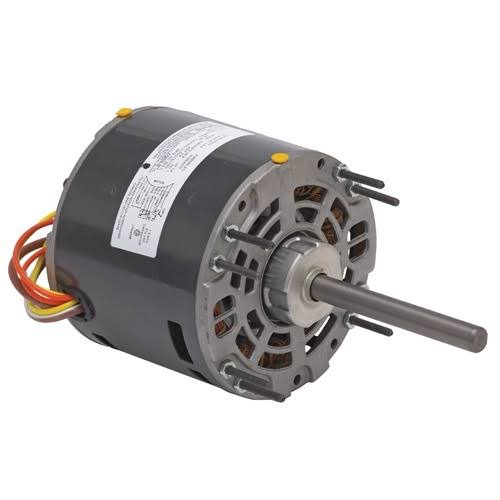
Any issues with the motor can affect the working of a fan. If you determine that the motor is not working even when there is proper current, it is most probably a bad motor. Fortunately, fan motors can be repaired and replaced, so you should not have a problem with that.

If your fan motor is failing continuously, the best option is to change it with a new one. you can replace the motor by following the steps given below:

Collect the replacement parts and all the tools required.
Turn off the power supply to the fan.
Unscrew the outer cover and remove the fan motor blades.
Carefully remove the fan motor, without breaking or damaging the wires.
Cut the metal rod of the motor and place the new motor on the grill.
Replace the blade.
Complete the wiring, and reassemble the parts.
Turn on the power supply, and check if it is working correctly.

POOR AIRFLOW


If the fan blades are not installed in the correct position, you will notice a decrease in the airflow. This can lead to fan overheating. Furthermore, the accumulation of dirt, dust, and other materials can drag the blades. This will increase heat energy emission, which will contribute to heating.


LACK OF MAINTENANCE


It is important to keep all electrical equipment in good condition by following a proper maintenance plan. For instance, if there is an accumulation of dirt in the fan motor, or if the motor is not lubricated enough, the resulting friction can lead to overheating problems.

Here is a basic maintenance list that will help you take good care of your fan:

Fan bearings: If there is a lot of noise coming out of your fan, it most probably indicates excessive wear on the fan bearings. Try lubricating the bearings, and if the problem is still not resolved, you can replace them. Be careful not to over-grease bearings as it can affect the roller motion and cause overheating.

Cleaning: All the components that are susceptible to dirt and dust particles’ build-up should be cleaned regularly. Accumulation of dirt can affect the working of the system and can cause overheating.

Motor condition: Loss of lubricant, damaged capacitor, and failed bearings can result in motor damage. To know if the motor is working properly, check if the motor’s power supply is adequate. You can also inspect the capacitor for signs of damage.
Shorted Motor Windings
Normally, there are thermal fuses in fans that will cut off the circuit when the motor is drawing too much current or when there is a short circuit. But when the windings on your fan are short, the motor will draw more current than usual, which results in overheating.


LEAKS


Check for any kind of leakage from the appliance. Leakages can result in energy loss, which will affect system performance. It might be due to different reasons like condensation in the duct and water from the roof. Replace or reposition the fan, and try insulating to avoid leakage.


WAYS TO FIX OVERHEATING


Now that you know what causes a fan to overheat, you can try to fix it yourself. But honestly, repairing fans without any help is not at all recommended. fans are high voltage devices, and you need to be extra careful while dealing with them.


However, cleaning the motor, blades, and the bushings do not pose any danger, so you can do these by yourself.

CLEAN THE FAN MOTOR


Here’s how you can clean the fan motor:

Unplug the fan and remove the outer cover.
Wipe down the fan blades (preferably using a microfiber cloth).
If dirt has accumulated on the outside of the motor, brush it out. Take care not to damage any connections or cables.


CLEAN THE BUSHINGS


Cleaning the bushings isn’t very easy. Once you take out all the parts, chances are, you’ll forget how to put them back together. But if you decide to go further, be very careful while handling the parts.

Here’s how you can clean the bushings:

Remove the screws that are on the outer edge of the motor.
Take out the motor carefully, without damaging any wires.
Remove the bushings using a flat head screwdriver or a nose plier (depending on the fan model). Typically, there are two bushings: one in the front and one at the back.
Replace the old, dirty bushings with brand new ones.
If you want a better idea of the whole cleaning process, watch this tutorial on how to clean a fan:


CONCLUSION


In short, fans can overheat due to several reasons like lack of maintenance, bad motor, poor airflow, shorted motor windings, and unclean bushings. Cleaning the motor and the bushings are the best options for you to try fixing the issue.

Most fan manufacturers do not recommend disassembling the fan all by yourself. In case of overheating, troubleshoot the fan’s malfunction using the tips mentioned in this article. And if the problem persists, seek professional help or consider buying a new fan.